
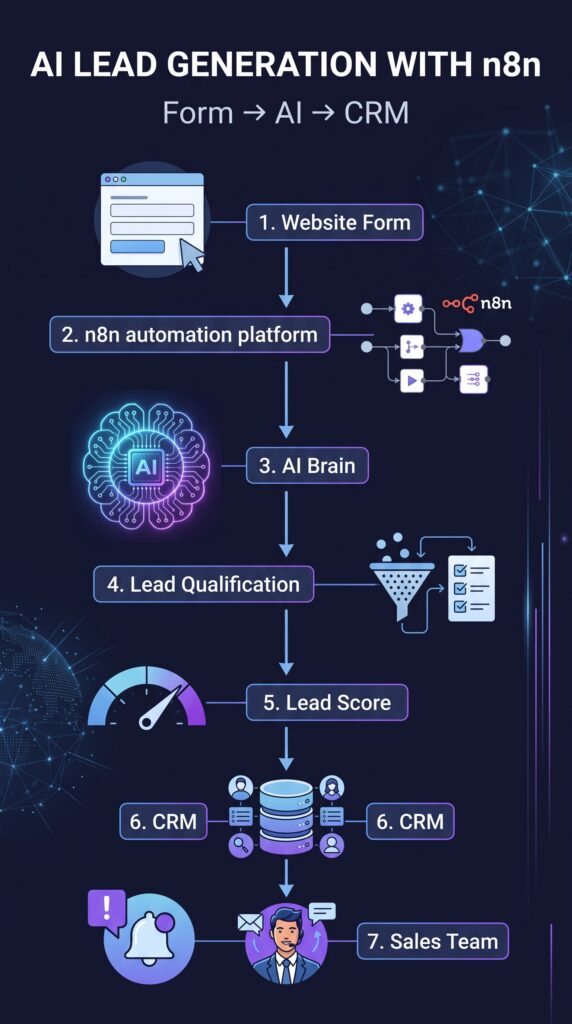
AI Lead Generation with n8n: Form → AI → CRM
A potential customer fills out your website form. The information arrives in an inbox or spreadsheet, but someone still has to read it, decide whether the lead is valuable, enter the details into a CRM, and notify the sales team.
That process can create delays and inconsistent decisions. With AI lead generation with n8n, you can connect a form to an automated workflow that validates the submission, asks an AI model to analyze the lead, assigns a practical score, creates or updates a CRM record, and alerts the appropriate person.
This tutorial explains how to build that workflow from the ground up. It is designed for beginners, freelancers, small businesses, agencies, marketers, entrepreneurs, and students who want to understand n8n lead generation without starting with an unnecessarily complicated system.
The 10-Second Idea
FORM → AI → SCORE → CRM → SALES
A website visitor submits information, n8n organizes it, AI helps classify it, and the result is delivered to the systems and people responsible for follow-up.
STOP MANUALLY COPYING LEADS INTO YOUR CRM.
The purpose of this workflow is to reduce repetitive data entry while keeping human judgment involved in important sales decisions.
What Is AI Lead Generation?
AI lead generation combines lead-capture automation with artificial intelligence. Instead of simply collecting a name and email address, the workflow can examine information such as the prospect’s business need, budget, timeline, industry, and message.
AI may then help produce a consistent summary, classify the lead, identify buying intent, and recommend an appropriate next action. n8n acts as the workflow layer that moves data between the form, AI service, CRM, notification platform, and storage system.
AI does not automatically know which prospects are valuable. Your business must define what makes a lead suitable. The AI model can help interpret the information, but the scoring rules should be reviewed and tested by people who understand your market.
How AI Lead Generation with n8n Works
FORM
  ↓
n8n WEBHOOK
  ↓
VALIDATE DATA
  ↓
CLEAN AND PREPARE DATA
  ↓
AI ANALYSIS
  ↓
LEAD QUALIFICATION
  ↓
LEAD SCORING
  ↓
IF / SWITCH
  ↓
CRM
  ↓
SALES NOTIFICATION
The workflow can be summarized as follows:
- The prospect submits a website form.
- The n8n Webhook node receives the data.
- Validation checks identify missing or invalid information.
- The data is cleaned and placed into a predictable structure.
- An AI model analyzes the lead’s needs and buying signals.
- The workflow receives structured qualification and scoring results.
- An IF or Switch node routes the lead according to its category.
- The CRM receives a new record or an update.
- The sales team receives a concise notification.
What You Need to Build This Automation
- n8n: The workflow automation platform.
- Lead capture form: A WordPress form, HTML form, form builder, or another service capable of sending data.
- AI model: An AI provider connected through an n8n node or the HTTP Request node.
- CRM: HubSpot, Salesforce, Pipedrive, Zoho CRM, or another supported system.
- Notification channel: Slack, email, Microsoft Teams, or another internal communication tool.
- Optional storage: Google Sheets, a database, or a data table for audit records.
Many CRM platforms provide contact APIs. For example, HubSpot’s contact API uses a properties object when creating a contact, and it can also support associations with other CRM records. The exact fields and operations depend on your CRM configuration. [2]
If you are new to n8n, begin with a simple workflow that saves form data to Google Sheets. After the basic flow works, add AI analysis, routing, CRM updates, and notifications.
Suggested : AI Training
Step-by-Step: Build the AI Lead Generation Workflow
Step 1 — Create Your Lead Capture Form
A useful form collects enough information to support a meaningful conversation without asking for unnecessary personal data.
Recommended fields
- Full name
- Email address
- Phone number, if genuinely needed
- Company
- Job title or role
- Website
- Industry
- Service or product of interest
- Budget range
- Expected timeline
- Message or project description
The full name, email address, service interest, and message are often enough for a basic workflow. Company, industry, budget, and timeline can improve qualification when they are relevant to the business.
Do not collect sensitive information simply because a form allows it. Every field should have a clear business purpose, and your privacy notice should explain how submitted information will be used.
Step 2 — Connect the Form to n8n
You can connect a form to n8n in several ways:
- Send an HTTP POST request directly to an n8n Webhook URL.
- Use a form plugin that supports webhooks.
- Use a form platform with an n8n integration.
- Use an intermediate service such as email, Google Sheets, or a database.
The simplest beginner architecture is a form that sends a POST request to an n8n Webhook node.
Step 3 — Receive Lead Data with a Webhook
Create a new workflow and add the Webhook node. Select the HTTP method used by your form, usually POST. During development, use the test URL supplied by n8n. After testing, replace it with the production URL when the workflow is active.
Depending on your form and security requirements, you may use no authentication for a carefully protected internal test or use Header Auth, Basic Auth, or JWT Auth for a more controlled endpoint. n8n documents these Webhook authentication options officially. [1]
Your incoming field names depend on the form. A field called email can be referenced with an expression such as:
{{ $json.email }}That expression works only if the incoming field is actually called email. If the form sends email_address, the expression must match the real structure.
Step 4 — Validate the Lead Information
Validation prevents incomplete or misleading submissions from reaching the AI model and CRM.
Check whether:
- A name exists.
- The email address has a plausible format.
- Required fields are present.
- The message is not empty.
- The submission is not an obvious duplicate.
- The values are within expected lengths and formats.
A simple validation structure looks like this:
LEAD DATA
   ↓
IF
   ├── VALID → CONTINUE
   └── INVALID → REJECT OR REVIEW
Use an IF node for straightforward checks. For more complex validation, use a Code node or a dedicated validation service. Invalid submissions can be logged and returned to a review process instead of being silently discarded.
Step 5 — Clean and Prepare the Lead Data
Use a Set or Edit Fields node to create a predictable internal structure. This makes later expressions easier to understand and reduces dependence on inconsistent form field names.
For example, map incoming fields into a structure such as:
{
  "full_name": "{{ $json.name }}",
  "email": "{{ $json.email }}",
  "company": "{{ $json.company }}",
  "industry": "{{ $json.industry }}",
  "service_interest": "{{ $json.service }}",
  "budget": "{{ $json.budget }}",
  "timeline": "{{ $json.timeline }}",
  "message": "{{ $json.message }}"
}
Normalize values where appropriate. For example, remove unnecessary spaces from an email address, convert empty values to null, and standardize categories such as budget ranges.
Step 6 — Send Lead Information to AI
Add the AI node or model integration after the cleaning step. The AI should receive only the information needed for qualification. Avoid sending unnecessary personal or sensitive information.
You can use an n8n AI node, an AI Agent configuration, or an HTTP Request node connected to an AI provider. The exact configuration depends on the provider, authentication method, and n8n version.
Step 7 — Create the AI Lead Qualification Prompt
A good prompt explains the task, defines the labels used by your workflow, limits unsupported assumptions, and requires structured output.
The following prompt uses HOT, WARM, COLD, and UNQUALIFIED as workflow labels. These are not universal industry standards; they are example categories selected for this automation.
You are a lead qualification assistant.

Analyze the lead information provided below. Use only the information
available in the input. Do not invent facts about the person, company,
budget, authority, or buying timeline.

Your tasks are:
1. Understand the customer's stated need.
2. Identify evidence of buying intent.
3. Assess urgency based on the stated timeline.
4. Compare the stated need with the service offered.
5. Assign a lead category using one of these workflow labels:
   HOT, WARM, COLD, or UNQUALIFIED.
6. Assign an illustrative score from 0 to 100.
7. Explain the assessment briefly.
8. Recommend a practical next action.
9. Set needs_human_followup to true when a person should review or
   contact the lead.

Use these category definitions for this workflow:
- HOT: Strong need, credible fit, clear intent, and a near-term timeline.
- WARM: Possible fit or moderate interest, but important information is
  missing or the timing is less urgent.
- COLD: Low urgency, weak intent, or a general inquiry.
- UNQUALIFIED: Missing essential information, outside the service scope,
  or clearly unsuitable based on the available information.

The score is not an objective truth. It is a working estimate based on
the business rules above.

Return valid JSON only, using this structure:
{
  "lead_category": "HOT",
  "lead_score": 0,
  "intent": "High",
  "urgency": "High",
  "service_interest": "",
  "summary": "",
  "recommended_action": "",
  "needs_human_followup": true
}

Lead information:
Name: {{ $json.full_name }}
Email: {{ $json.email }}
Company: {{ $json.company }}
Industry: {{ $json.industry }}
Service interest: {{ $json.service_interest }}
Budget: {{ $json.budget }}
Timeline: {{ $json.timeline }}
Message: {{ $json.message }}
Step 8 — Classify the Lead
The AI should return one of the four labels selected for this workflow:
- HOT: Strong need, clear intent, suitable fit, and near-term timing.
- WARM: Potential fit, but some buying information or urgency is uncertain.
- COLD: Low urgency, general interest, or weak evidence of an active project.
- UNQUALIFIED: Missing essential information or outside the business’s service scope.
These labels should be treated as internal workflow categories. Your business may use different names or definitions.
Step 9 — Calculate or Generate a Lead Score
Lead scoring means assigning a numerical estimate based on signals that may influence the probability of a useful sales conversation.
An illustrative scoring framework could include:
- Budget fit: 20 points.
- Purchase intent: 25 points.
- Timeline: 20 points.
- Business need: 15 points.
- Company fit: 15 points.
In this example, the maximum is 95 points. The numbers are not a universal formula. A company selling low-cost products may use completely different criteria from an enterprise software provider.
You can either ask the AI to estimate the score or calculate it through explicit n8n rules after the AI extracts the signals. A rule-based calculation is often easier to audit, while AI can help interpret free-text messages.
Step 10 — Determine Lead Priority
Convert the category and score into an operational priority. For example:
- HOT or a score above a business-defined threshold: notify sales quickly.
- WARM: create a CRM task and request follow-up within a reasonable period.
- COLD: add the lead to a permission-based nurturing process.
- UNQUALIFIED: store the submission for review without creating unnecessary sales activity.
Do not assume that a high AI score is correct. Review a sample of predictions against actual sales outcomes and adjust the rules over time.
Step 11 — Add an IF/Switch Node
Use an IF or Switch node to route the AI output.
AI RESULT
   ↓
SWITCH ON lead_category
   ├── HOT → CRM + SALES ALERT
   ├── WARM → CRM + FOLLOW-UP TASK
   ├── COLD → CRM + NURTURE
   └── UNQUALIFIED → REVIEW OR ARCHIVE
Before routing, check that the AI output contains a valid category and a score within the expected range. If the response is malformed, send it to an error or human-review branch.
Step 12 — Send Qualified Leads to CRM
Connect the qualified branch to your CRM node. Common options include HubSpot, Salesforce, Pipedrive, Zoho CRM, and other systems supported by n8n.
The general process is:
AI
 ↓
IF / SWITCH
 ↓
QUALIFIED?
 ↓
CRM
 ↓
CREATE OR UPDATE CONTACT / LEAD
CRM node names and fields may differ between integrations and n8n versions. Map fields carefully and test with a non-production record first.
Step 13 — Create or Update the CRM Contact
Before creating a new contact, search the CRM using a reliable identifier such as email. If a match exists, update the existing record rather than creating a duplicate.
NEW LEAD
   ↓
SEARCH CRM BY EMAIL
   ↓
EXISTING?
  ↙       ↘
YES       NO
 ↓         ↓
UPDATE   CREATE
RECORD    LEAD
Depending on the CRM, you may store the following information:
- Name and contact details.
- Company and industry.
- Service interest.
- Budget and timeline.
- AI category and score.
- AI summary.
- Recommended action.
- Lead source and submission date.
For example, HubSpot’s API supports creating a contact through the contacts endpoint with property values in the request. Your CRM integration may expose this operation directly through an n8n node or require the HTTP Request node. [2]
Step 14 — Notify the Sales Team
Send a concise notification to Slack, email, Microsoft Teams, or another internal channel.
🔥 NEW QUALIFIED LEAD

Name: {{ $json.full_name }}
Company: {{ $json.company }}
Interest: {{ $json.service_interest }}
Budget: {{ $json.budget }}
Timeline: {{ $json.timeline }}

Lead Score: {{ $json.lead_score }}
Priority: {{ $json.lead_category }}

Recommended Action:
{{ $json.recommended_action }}
Keep internal notifications focused. Avoid including unnecessary sensitive information, full form submissions, passwords, financial account details, or private notes that the recipient does not need.
Step 15 — Store the Lead Data
Store an audit copy in Google Sheets, a database, or another approved system. This can help you troubleshoot failed CRM updates and review whether AI classifications are useful.
At minimum, record:
- Submission timestamp.
- Lead identifier or email.
- Source form.
- AI category.
- AI score.
- CRM status.
- Notification status.
- Error message, if any.
Step 16 — Send a Follow-Up Message
Follow-up should be based on consent, business rules, and the lead’s category.
HOT LEAD
   ↓
CRM
   ↓
SALES NOTIFICATION
   ↓
HUMAN FOLLOW-UP TASK

WARM LEAD
   ↓
CRM
   ↓
PERMISSION-BASED EMAIL SEQUENCE

COLD LEAD
   ↓
CRM
   ↓
NURTURE WORKFLOW
Automated outreach must comply with applicable privacy, consent, anti-spam, and platform requirements. Do not assume that submitting a form automatically gives permission for every type of marketing communication.
Suggested AI Training
Step 17 — Test the Complete Workflow
Test every branch before sending real customer data into production. Start with a test form and a test CRM record.
Check the original form payload, cleaned data, AI response, routing result, CRM record, notification, and final workflow status.
Step 18 — Activate the Automation
After testing, switch the workflow to production and update the form with the production Webhook URL. Monitor the first submissions closely.
Keep a rollback plan. If the AI provider, CRM, or notification service fails, the original lead should still be preserved somewhere safe for manual review.
Example Webhook Payload
A sample website form might send the following JSON data:
{
  "name": "Sarah Khan",
  "email": "sarah@example.com",
  "company": "ABC Marketing",
  "industry": "Digital Marketing",
  "service": "AI Automation",
  "budget": "2000-5000",
  "timeline": "30 days",
  "message": "We want to automate customer support."
}
The fields represent:
name: The submitted person’s name.email: The contact email used for validation and CRM matching.company: The organization associated with the inquiry.industry: The business sector.service: The product or service of interest.budget: The submitted budget range.timeline: The expected purchase or project timeline.message: The prospect’s free-text explanation.
Actual field names depend on your form, form plugin, and n8n workflow. Always inspect a real test submission before writing expressions.
AI Output Format
Structured output allows n8n to use individual AI fields in later nodes. Instead of receiving a paragraph that is difficult to parse, the workflow receives predictable values such as lead_category, lead_score, and recommended_action.
{
  "lead_category": "HOT",
  "lead_score": 87,
  "intent": "High",
  "urgency": "High",
  "service_interest": "AI Automation",
  "summary": "The company is actively looking for AI automation and has a defined timeline and budget.",
  "recommended_action": "Contact within one business day",
  "needs_human_followup": true
}
An AI-generated score is not objectively correct simply because it is expressed as a number. Treat it as an estimate produced using the prompt and information available at that moment. Define, test, and improve your own scoring criteria.
Complete Workflow Diagram
             WEBSITE FORM
                   ↓
              n8n WEBHOOK
                   ↓
             DATA VALIDATION
                   ↓
              DATA CLEANING
                   ↓
                AI MODEL
                   ↓
           LEAD QUALIFICATION
                   ↓
              LEAD SCORING
                   ↓
              IF / SWITCH
             ↙          ↘
          HOT/WARM      COLD
             ↓            ↓
            CRM        NURTURE
             ↓
       SALES NOTIFICATION
             ↓
        HUMAN FOLLOW-UP
Website form: Captures the prospect’s information.
n8n Webhook: Receives the HTTP request and starts the workflow.
Data validation: Checks required fields, formats, and obvious errors.
Data cleaning: Maps inconsistent form fields into a predictable structure.
AI model: Interprets the message and other qualification signals.
Lead qualification: Assigns a workflow category such as HOT, WARM, COLD, or UNQUALIFIED.
Lead scoring: Produces an illustrative numerical estimate using defined business signals.
IF/Switch: Routes the lead to the appropriate branch.
CRM: Creates or updates the contact or lead record.
Nurture: Sends suitable lower-priority leads into a permission-based follow-up process.
Sales notification: Alerts the responsible person when human attention is needed.
Real-World Example: Digital Marketing Agency
Imagine a digital marketing agency that offers AI-powered customer-support automation to ecommerce companies.
A visitor submits this message:
“I need AI-powered customer support for my ecommerce business. We have around 50 employees and want to start within the next month.”
The journey could look like this:
- The visitor submits the website form.
- The n8n Webhook receives the name, email, company, message, industry, and timeline.
- The validation branch confirms that the email and message are present.
- The cleaning step standardizes the fields.
- The AI identifies a specific operational need, a clear project, and a near-term timeline.
- The workflow assigns a HOT category and an illustrative score such as 87.
- The CRM search checks whether the email already exists.
- If no match exists, n8n creates a new lead and stores the AI summary.
- Slack or email alerts the sales team.
- A salesperson reviews the information and contacts the prospect personally.
The important point is not the exact score. The value comes from moving the information quickly and consistently while keeping a human involved in the sales conversation.
How to Handle Errors in Your n8n Lead Generation Workflow
Every external service can fail. A reliable workflow plans for errors instead of assuming that every API request will succeed.
