AI Email Automation with n8n
Imagine receiving an email and having an AI system automatically read it, understand what the sender wants, generate an appropriate response, send the reply through Gmail, and notify you on Slack — all without manually processing every message.
This is exactly what we are going to build using n8n, Gmail, AI, and Slack.
This tutorial is designed for beginners — every step explained from the beginning. You do not need advanced programming knowledge.
What Is AI Email Automation?
AI email automation means using artificial intelligence and workflow automation to process emails automatically. Instead of manually opening every email, reading it, deciding what it means, writing a response, and notifying your team, an automated workflow can perform these tasks for you.
- Detect a new Gmail message.
- Send the email content to an AI model.
- Ask AI to understand and classify the email.
- Generate a professional response.
- Send the response through Gmail.
- Send a notification to Slack.
What We Are Going to Build
Subject: Meeting Request
Hi, I would like to schedule a meeting with you next week to discuss our new project. Please let me know your availability. Regards, John
Instead of manually processing this email, AI can identify it as a meeting request, determine its priority, summarize it, and prepare a professional response.
Tools Required
- n8n – for workflow automation.
- Gmail – for receiving and sending emails.
- OpenAI or another supported AI provider – for understanding emails and generating responses.
- Slack – optional, for receiving automation notifications.
Step‑by‑Step Workflow
1 Log In to n8n
Log in to your n8n account, click Create Workflow, and rename it to AI Email Automation - Episode 2.
2 Add Gmail Trigger
Click Add first step → search for Gmail Trigger and select it.
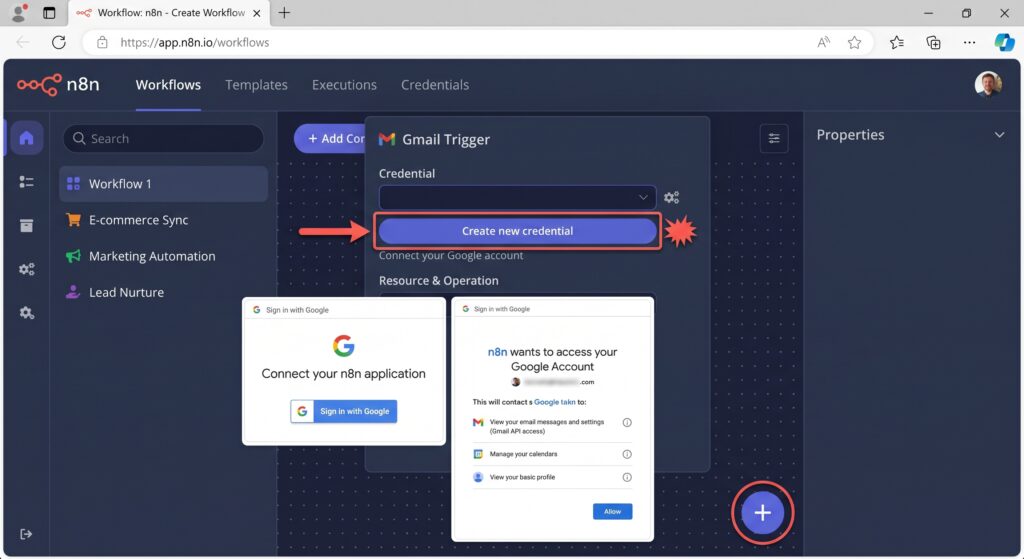
3 Connect Gmail Account
Open the node, create a new credential, authenticate your Google account, and grant permissions.
4 Configure Gmail Trigger
Set it to detect new incoming messages. Save the node.
5 Test the Gmail Trigger
Send a test email (e.g., “Meeting Request”) and verify that n8n returns sender, subject, body, message ID, etc.
6 Add the AI Node
Click + after the Gmail Trigger, search for OpenAI (or your AI provider) and select it.
7 Connect OpenAI
Create a new credential with your OpenAI API key. Never expose your API key.
8 Select AI Model
Choose a chat or text-generation model capable of understanding email content and generating replies.
9 Give AI Instructions
You are an AI email assistant.

Analyze the incoming email.

Your tasks are:
1. Identify the type of email.
2. Determine whether the email requires a response.
3. Create a short, professional response.
4. Determine the priority.
5. Provide a brief summary.

Return the result in this structure:

Category:
Priority:
Requires Reply:
Summary:
Suggested Reply:

Do not invent information.
Do not make promises about dates, prices, payments, or commitments
that are not present in the email.

Incoming email:

Subject:
{{EMAIL SUBJECT}}

Body:
{{EMAIL BODY}}
10 Connect Gmail Data to AI
Use n8n’s expression selector to map the Gmail subject & body into the AI prompt placeholders.
11 Test the AI
Execute the AI node. You should see output like:
Category: Meeting Request
Priority: Medium
Requires Reply: Yes
Summary: The sender wants to schedule a meeting next week...
Suggested Reply: Hi John, Thank you for reaching out...
12 Add Gmail Node
Click + after AI, search for Gmail, and select it.
13 Configure Gmail to Reply
Use the same Gmail credential, select the appropriate resource/operation to reply to the original message.
14 Map Original Message ID
In the Gmail node, map the Message ID from the Gmail Trigger so the reply goes to the right thread.
15 Add AI Response to Gmail
Map the AI-generated Suggested Reply into the message/body field of the Gmail node.
16 Test Gmail Reply
Send another test email and verify that an AI-generated reply arrives.
17 Add Slack Notifications
Click + and search for Slack. Connect your Slack account, create a channel like #ai-email-alerts.
18 Create Slack Notification
🤖 AI Email Automation

📧 New Email Received
From: [Sender]
Subject: [Subject]
Category: [AI Category]
Priority: [AI Priority]
Summary: [AI Summary]
✉️ AI Reply: [AI Suggested Reply]
Status: ✅ Reply sent automatically
Map the Gmail and AI values using n8n expressions.
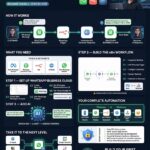
19 Understand the Complete Workflow
20 Test Entire Automation
21 Activate Workflow
Activate the workflow using n8n’s activation control. Now it runs automatically:
Email → AI → Draft → Human Approval → Gmail → Send.Common Problems & Solutions
- Gmail Trigger not detecting emails: Check credentials, monitor config, and account.
- AI receives empty email: Verify data mapping between Gmail and AI prompt.
- AI generates incorrect reply: Improve prompt with clear instructions and constraints.
- Gmail does not reply to correct email: Check Message ID mapping.
- Slack notification fails: Check credentials, channel, and permissions.
How to Improve This Automation
- Email Classification – categorize into Sales, Support, Meeting, Complaint, etc.
- Conditional Logic – use IF/Switch nodes for different email paths.
- Connect CRM – send sales leads to your CRM automatically.
- Human Approval step – pause before sending AI replies.
- Store data – save classifications and summaries to Google Sheets or Airtable.
Frequently Asked Questions
No. n8n provides a visual workflow builder. Some basic expression knowledge helps as workflows advance.
Yes. n8n supports multiple AI integrations. Configuration depends on your provider and available nodes.
Technically yes, but start with testing & human approval. Automate low-risk categories first.
Yes, with the appropriate n8n integration and credentials.
Absolutely. Slack works as an additional output for notifications.
Final AI Email Automation
This is more than connecting Gmail to AI. You’ve created a complete workflow where information enters, AI processes it, an action is performed, and a notification is generated.
Next Tutorial: How to Build Your First AI Agent in n8n.